How to Password-Protect Files Before Sharing Them Online
Nov 06, 2026 09:27 AM
Kaushik Sampat
How to Password-Protect Files Before Sharing Them Online
Sharing files online is convenient, but sending confidential documents without proper protection can create privacy and security risks. Personal records, business reports, financial documents, and important project files may contain information that should not be accessible to everyone.
One simple way to improve file security is to password-protect documents before uploading or sharing them online. This adds an extra layer of protection and helps prevent unauthorised people from opening your files.
Whether you are sharing files with colleagues, clients, friends, or family members, taking a few precautions can make online file sharing safer.
Why Should You Password-Protect Files?
A sharing link can sometimes be forwarded to other people or accessed by someone who was not originally intended to receive it. Password protection helps restrict access to the actual file.
Some important benefits include:
- Better privacy: Prevent unauthorised users from opening protected files.
- Confidential sharing: Add protection to sensitive business and personal documents.
- Safer file transfers: Reduce the risk of exposing information if a sharing link reaches the wrong person.
- Additional security: Combine file passwords with other available sharing controls.
How to Password-Protect Different File Types
The protection method depends on the type of file you want to share.
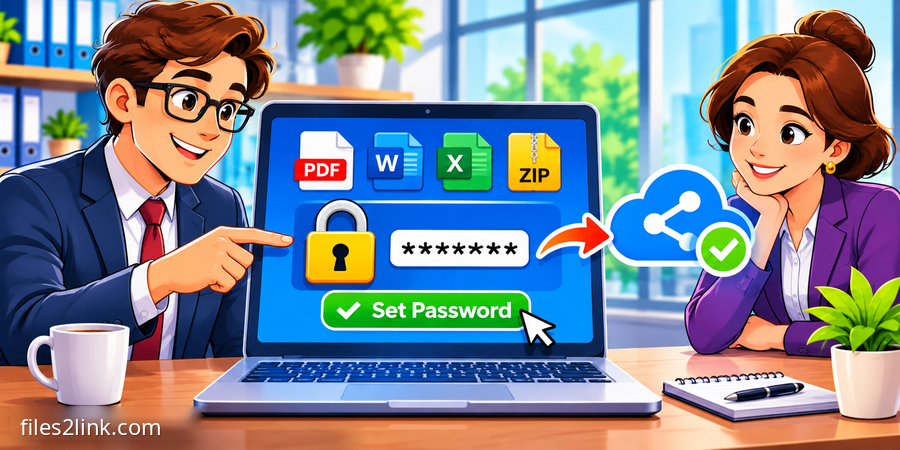
1. Password-Protect PDF Files
PDF documents can be protected using compatible PDF software. Look for an option such as Protect, Security, or Encrypt. Set a strong password and save the protected document before sharing it.
2. Protect Microsoft Word and Excel Files
Microsoft Office provides built-in password protection.
Open your document, select File, then Info, and look for Protect Document or Protect Workbook. Choose the password encryption option, enter a strong password, and save the file.
3. Create a Password-Protected ZIP File
If you want to share multiple files together, consider creating an encrypted ZIP archive. Compatible tools such as 7-Zip allow you to create password-protected archives using AES-256 encryption.
Choose a strong password and select the encryption option before creating the archive.
Tips for Creating Strong File Passwords
A weak password can make protected files easier to access without permission.
Follow these simple recommendations:
- Use at least 12–16 characters.
- Combine uppercase letters, lowercase letters, numbers, and symbols.
- Avoid names, birthdays, and common words.
- Use a different password for important files.
- Never share the password in the same message as the download link.
For better protection, send the password through a separate communication channel.
Share Protected Files Easily with Files2Link
After protecting your documents, you can use Files2Link to make file sharing more convenient.
Visit Files2Link.com to explore its file-sharing functionality. Upload your prepared file and use the generated shareable link to distribute it through email, messaging apps, or other communication channels.
Remember that uploading a password-protected file is different from password-protecting the sharing link. Always protect the file itself before uploading it if it contains confidential information. Also, check the platform's security and access-control features before sharing sensitive documents.
Conclusion
Password-protecting files before sharing them online is a simple but valuable security practice. Whether you are sending PDFs, Office documents, or ZIP archives, choosing strong passwords and sharing them separately can help protect confidential information. Combine file encryption with responsible sharing habits to make your online file transfers safer.
Login or create account to leave comments
Popular articles
How to Create a Shareable Link for Word Documents
Oct 27, 2026 07:48 AM

How to Choose the Right Online File-Sharing Tool
Oct 29, 2026 07:39 AM
Direct Download Links vs. File-Sharing Links: What's the Dif...
Oct 27, 2026 07:21 AM
Common File Formats Explained
Oct 29, 2026 07:34 AM
How to Password-Protect Files Before Sharing Them Online
Nov 06, 2026 09:27 AM
Categories
Comments (0)