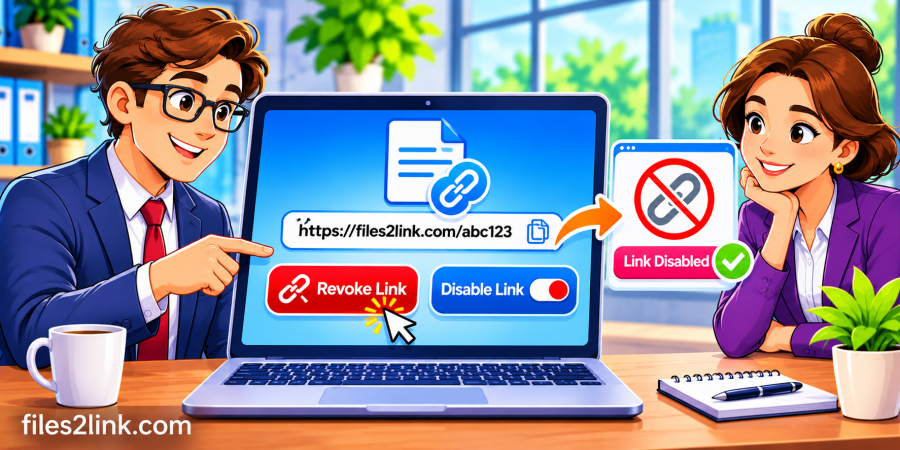
How to Revoke or Disable a File-Sharing Link
Nov 10, 2026 07:06 AM
Kaushik Sampat
Sharing files through online links is quick and convenient. However, sometimes you may accidentally send a link to the wrong person, share it with someone who should not have access, or simply no longer need the link. In such situations, knowing how to revoke or disable a file-sharing link is important.
Disabling an unwanted sharing link helps reduce unnecessary access to your files and gives you better control over what you share online. Whether you are sharing personal documents, business reports, images, or project files, managing your sharing links is a useful security practice.
What Does It Mean to Revoke or Disable a Link?
Revoking a file-sharing link means making an existing URL inactive so that people can no longer use it to access the shared file.
For example, if you send a document link to a client and later decide that access is no longer required, you can disable the link if your sharing platform provides this option.
The original file may remain stored in your account. Only access through that particular sharing link is stopped. However, downloaded copies may still exist on recipients' devices.
When Should You Disable a File-Sharing Link?
There are several situations when revoking a link makes sense:
- Wrong recipient: You accidentally sent the sharing link to the wrong person.
- Completed projects: Your client or colleague no longer needs access to the shared files.
- Confidential information: You want to stop further access to a sensitive document.
- Unwanted sharing: You discover that someone has forwarded your link without permission.
- Old downloads: A previously shared file is no longer relevant or required.
How to Revoke or Disable a File-Sharing Link
The exact process depends on the file-sharing platform, but most services that support link management follow similar steps.
Step 1: Open your account
Log in to the file-sharing service where you uploaded your document.
Step 2: Find your shared file
Navigate to your uploaded files, shared links, or file management section.
Step 3: Locate the link management option
Select the file and look for options such as Manage Access, Sharing Settings, or Shared Links.
Step 4: Disable or revoke the link
Choose the available option to remove access, disable sharing, or revoke the existing URL.
Step 5: Confirm the change
If possible, test the old link in a private browser window to check whether it is no longer accessible.
Remember that some services allow link revocation, while others may require deleting the shared file or changing its permissions.
Use Files2Link for Convenient File Sharing
Looking for a convenient way to share files online? Files2Link helps users upload files and create shareable links, making it easier to distribute documents, images, videos, and other file formats.
Visit Files2Link.com to explore its file-sharing functionality and make your online file transfers more convenient.
Always check the available link-management and access-control features before sharing important files. Do not assume that a sharing link can be revoked unless the platform explicitly provides that functionality.
Tips for Managing File-Sharing Links Safely
Follow these simple practices to improve your file-sharing habits:
- Share links only with intended recipients.
- Avoid posting private links on public websites.
- Use password protection when available.
- Review your active sharing links regularly.
- Remove access when a file is no longer needed.
- Avoid sharing confidential information through untrusted platforms.
Conclusion
Revoking or disabling an unnecessary file-sharing link is a useful way to maintain better control over your shared files. Whether a link was sent accidentally or is no longer required, removing access can help reduce unwanted exposure. Choose a suitable file-sharing platform, understand its access-control features, and manage your links responsibly.
Login or create account to leave comments
Popular articles
How to Create a Shareable Link for Word Documents
Oct 27, 2026 07:48 AM

How to Choose the Right Online File-Sharing Tool
Oct 29, 2026 07:39 AM
Direct Download Links vs. File-Sharing Links: What's the Dif...
Oct 27, 2026 07:21 AM
Common File Formats Explained
Oct 29, 2026 07:34 AM
How to Password-Protect Files Before Sharing Them Online
Nov 06, 2026 09:27 AM
Categories
Comments (0)